The guide · Play
How to play it.
Four knobs, one panel of light. From the moment it's in your hands to your own patterns running on it — and the device on this page turns, presses and holds exactly like yours.
Scroll
The guide · Play
Four knobs, one panel of light. From the moment it's in your hands to your own patterns running on it — and the device on this page turns, presses and holds exactly like yours.
Scroll
Once, the first time: download mode, the firmware, then your Wi-Fi — which usually takes a second go.
The ESP32
Patternflow's brain is an ESP32-S3 module, seated in sockets on the board inside. Slide the back cover off sideways, then lift the module out — gently, straight up.
Stuck here? Tell usHold it like this
The module at the top, its antenna end up; the two USB-C ports at the bottom. Which way you hold it matters for the next step.
Stuck here? Tell usThe left port
Use the left port, labelled USB, with a USB-C cable that carries data, and plug the other end into your computer.
The right one (UART) is for Arduino IDE. The browser can flash through it, but it can't set up Wi-Fi there.
Nothing shows up at all? It's almost always a charge-only cable. Try another one first.
Stuck here? Tell usDownload mode
Every first flash starts here, before you press anything on this page. Press and hold BOOT, tap RST, then let go of BOOT. The board now waits for its firmware.
In download mode the flasher can't tell it's already Patternflow, so it erases it — installed patterns and saved Wi-Fi too. Fine on a new build. A board already running Patternflow updates over Wi-Fi instead, from its console's Update page.
Flash
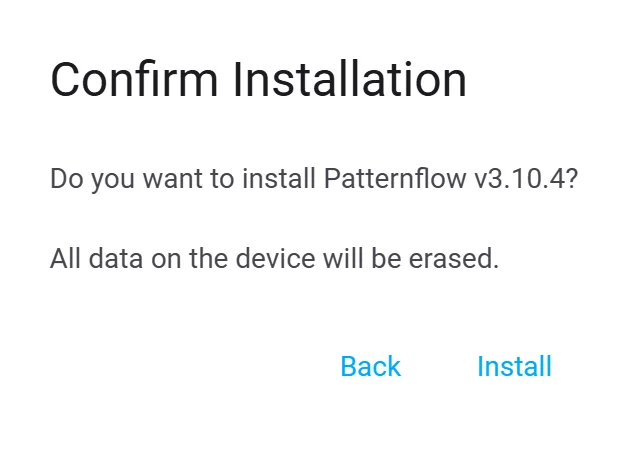
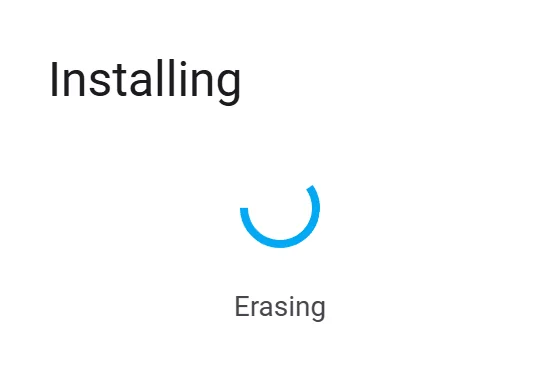
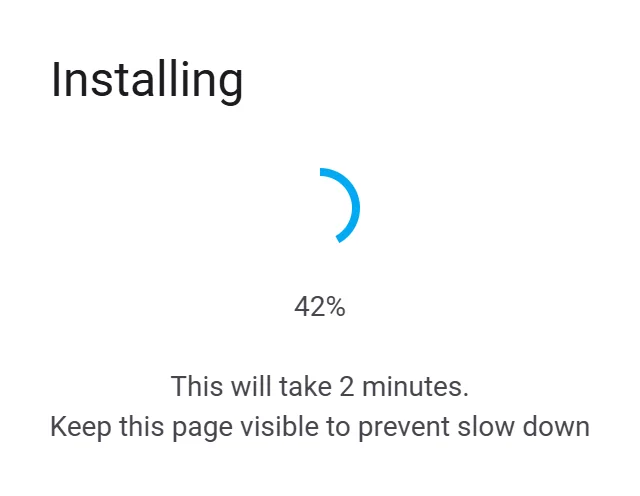
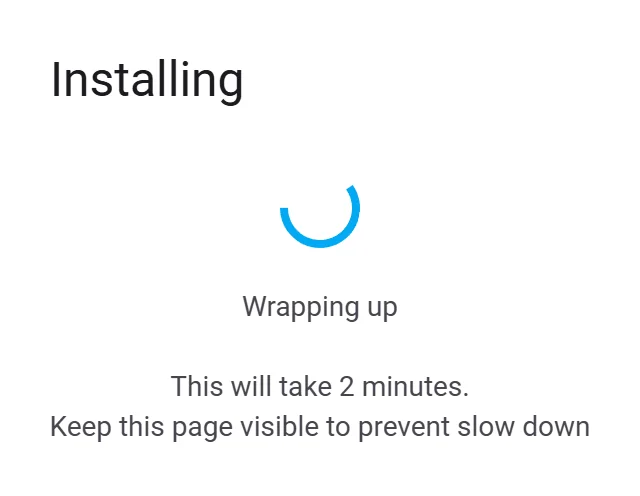
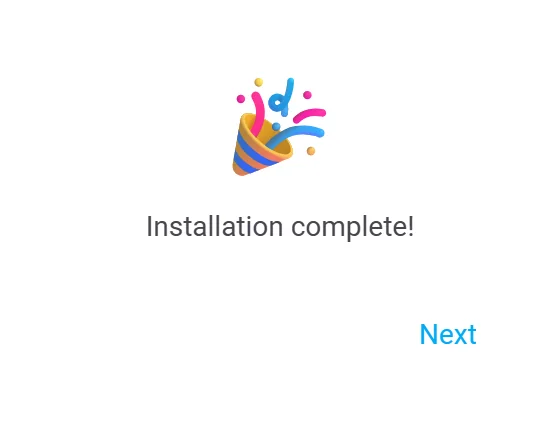
In desktop Chrome or Edge, press Flash Patternflow below and pick USB JTAG/serial debug unit. The dialog walks you through the rest; its screens are under the button. About two minutes.
Not in the list? Hold BOOT, tap RST again, then press the button again.
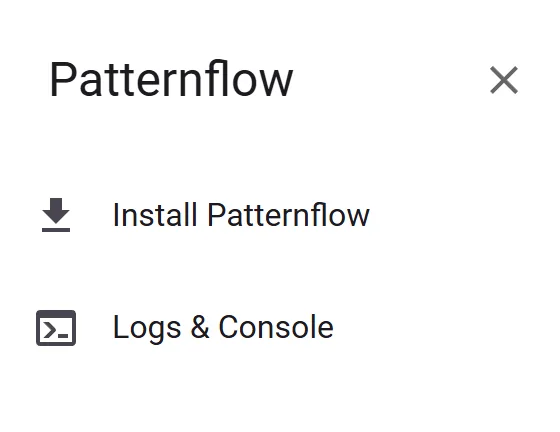
Install PatternflowAfter you pick the port, the dialog opens here. Choose Install Patternflow.
Wi-Fi
Usually the dialog ends without asking for your Wi-Fi. That's normal, nothing failed: the board just hasn't restarted into Patternflow yet.
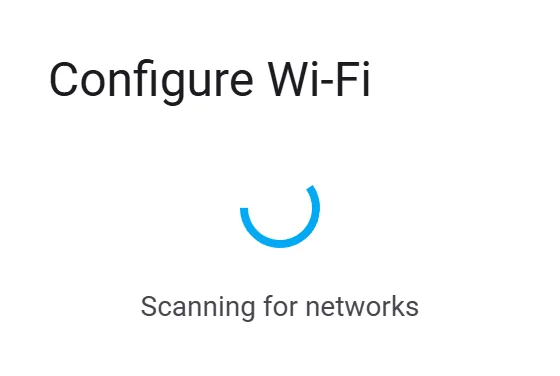
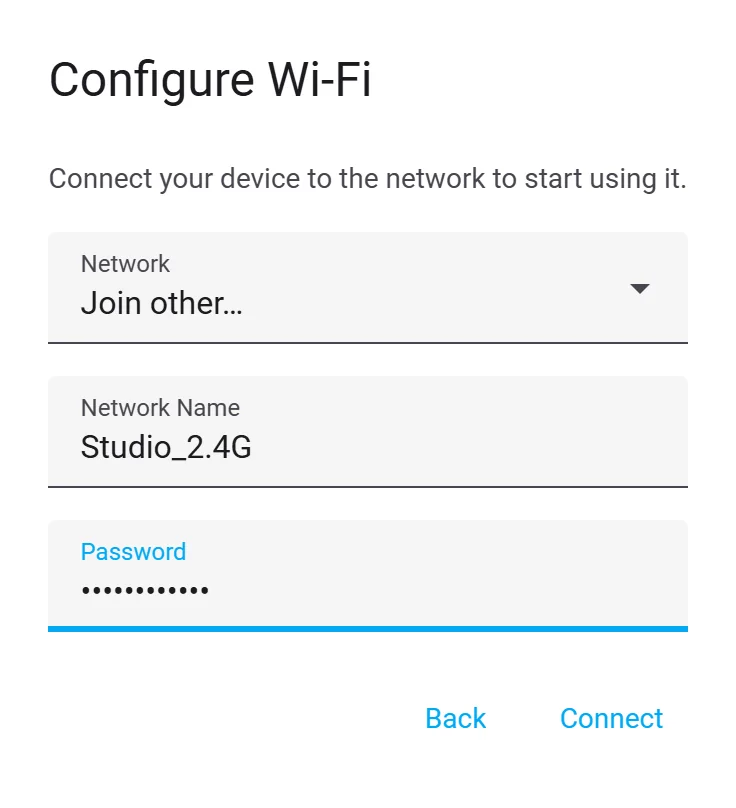
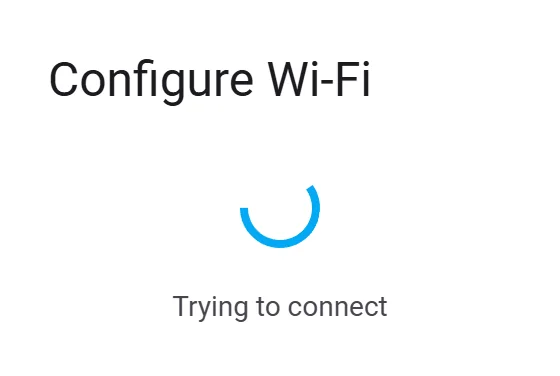
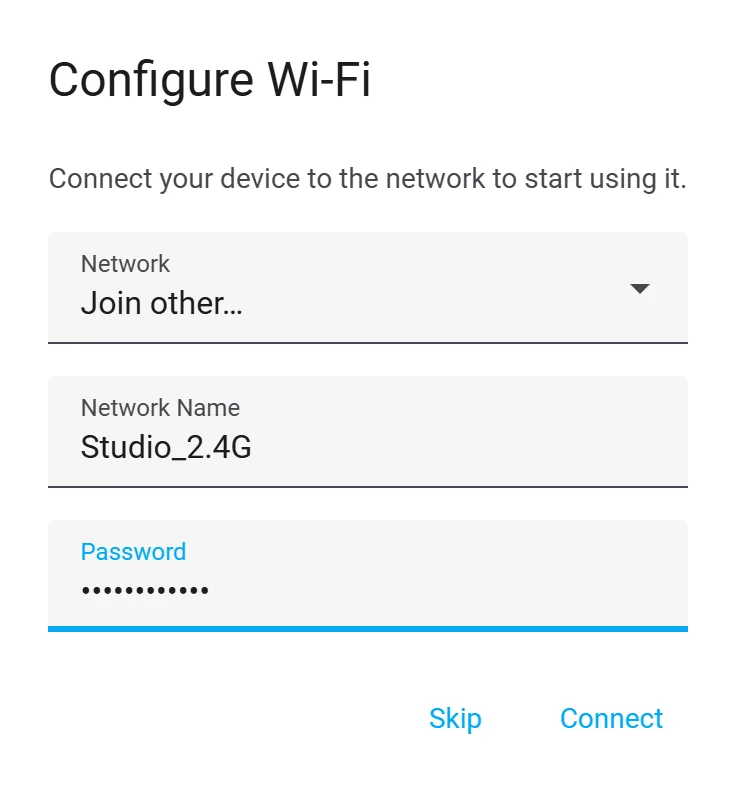
Close the dialog, press RST once, then press Flash Patternflow below and pick the port again. This time it opens on Patternflow's own menu instead of installing: choose Connect to Wi-Fi, type your network's name exactly — capitals count — and its password, and Connect.
2.4 GHz only: the ESP32 can't see 5 GHz. Still won't join? Carry on: this chapter's last card does it from a phone.
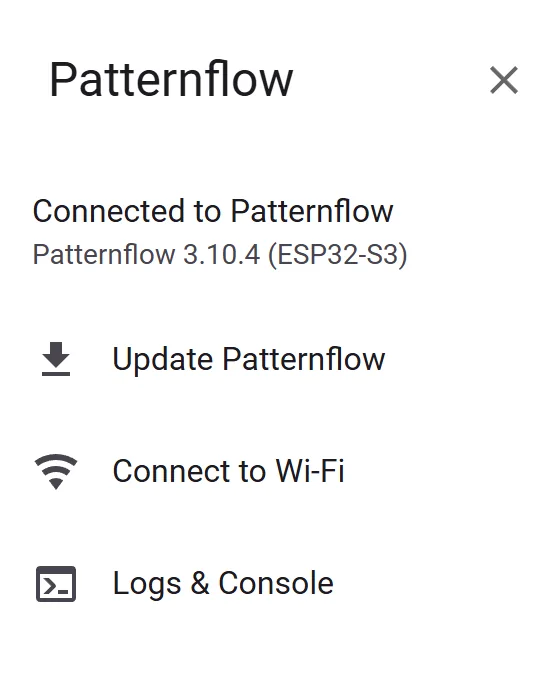
Connect to Wi-FiAfter RST, press Flash Patternflow and pick the port again: now it opens on Patternflow's own menu. Choose Connect to Wi-Fi.
Power
Unplug the USB cable. Seat the ESP32 back in its sockets the way the silkscreen shows, slide the back cover on, and plug Patternflow's power cable into a power bank.
Power always goes in through that cable — never through the ESP32's USB ports.
Stuck here? Tell usStill no Wi-Fi?
Hold K2, the top-left knob, for a second. CONNECTED and an address: it's on your Wi-Fi, carry on. HOTSPOT and a name like patternflow-a1b2, over two lines: it found no network it knows, so it became one.
Join that network from a phone or laptop — the password is patternflow — and open http://192.168.4.1/. The phone will say there's no internet: true, and it stays connected.
On the Wi-Fi page, pick your network from the ones the panel found, add its password, and Save. The panel's screen then shows JOINED and its new address, or why it couldn't.
Neither on K2 yet, or not in your phone's list? The hotspot only comes up about 15 seconds after power-on. Wait, refresh the list (or switch Wi-Fi off and on), and look for the exact name K2 shows.
Stuck here? Tell usTurn, press, hold. That's the whole instrument.
The numbers
K1 top right, K2 top left, K3 bottom right, K4 bottom left. Not the order you'd guess.
Stuck here? Tell usTurn
Each knob moves whatever the running pattern gives it. On Origin: K1 colour, K2 speed, K3 the tiling, K4 the wave's frequency.
Every pattern decides its own four. That's the point.
The one here plays like yours: take the orange dot on a knob's ring and drive it round — beside the knob you'll see what that knob is and where it is. Click to press, hold a second for its screen.
Stuck here? Tell usPress
A click goes to the pattern too. On Origin it zeroes that knob: K1 back to red, K2 stops the motion, K3 back to the first tiling, K4 to its lowest frequency.
Stuck here? Tell usHold K1
Hold any knob for a second and the device takes over from the pattern. K1 is brightness: turn K1 to set it, then press K1 — or just wait five seconds.
Stuck here? Tell usHold K2
K2 shows the Wi-Fi state and the board's IP address, split over two lines. Remember where it is: it's how your phone finds the board.
Turning K1 here puts the panel to sleep. Any knob wakes it.
Stuck here? Tell usHold K3
K3 puts every knob's number on the panel, and the one you're turning lights up in orange.
Stuck here? Tell usHold K4
K4 opens the pattern list. Turn K4 to move — three clicks per pattern — and it loads when you stop. Hold K4 again to close it.
Right now it says 1 / 1. That's next.
Stuck here? Tell usPatterns are small files. They arrive over Wi-Fi — no cable, no reflashing.
1 / 1
Origin is built into the firmware, so a board can always boot into something. Everything else lives on the board's storage and installs in seconds.
Stuck here? Tell usBasics
The community has patterns one by one, and decks — a set of them, like a hand of cards. Basics is the deck made for a new board: 33 patterns, no account needed.
A single pattern goes on the same way, from its own page (Send to my Patternflow). And you can make a deck of your own and share it.
Install
On the Basics card, press Install to my board. Your browser opens the board's own page and hands it the whole pack over your Wi-Fi — the board never goes on the internet itself.
The first time, it asks to format its storage. Press Format storage, confirm, and the pack installs by itself, file by file. It takes under a minute.
Android can't open patternflow.local. Hold K2 and type the IP address into Device address on the card first.
Stuck here? Tell us1 / 34
Origin and the 33 Basics. Turn K4 to browse, stop to play, hold to close.
Stuck here? Tell usThe board serves its own web page. Every setting it has lives there.
patternflow.local
On a computer on the same Wi-Fi, go to patternflow.local. What's playing, brightness, sleep, the four knobs as sliders — and a page for everything else.
The one below is live. Open it, step through patterns with the arrows by Now playing or slide a knob, and watch the panel follow.
Stuck here? Tell usOn a phone
Phones — Android especially — often can't find patternflow.local. Hold K2 and type the IP address it shows. On Windows, http://patternflow/ works too.
Same console, phone-sized. Try it here too.
Stuck here? Tell usInside
Patterns to install, delete or download. Up to five Wi-Fi networks, the latest first unless you pick one. Which way each knob counts. And new firmware, over Wi-Fi, with your patterns kept.
Click a name to play it. Install, delete, download as a ZIP, and set the order.
That was the first hour. The next guide is about making: finding what other people made, and making your own.
The Audio guide
After that
Until they're here, the real things: